

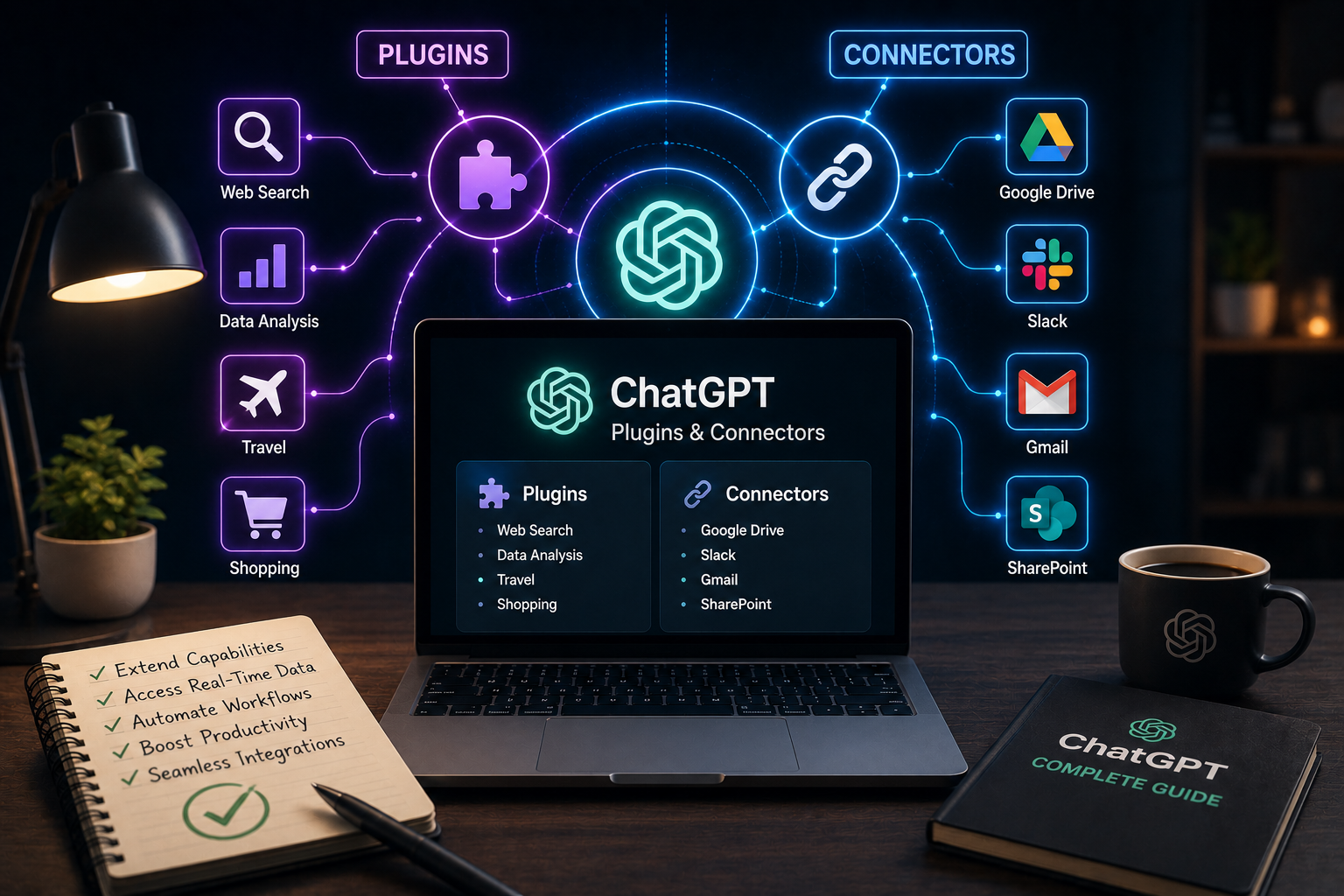
ChatGPT started as a single chat window that answered questions from its own training data. It has since grown into something closer to a hub that can reach into your inbox, your files, and your business tools to pull real, current information into a conversation. Two features made that possible at different points in ChatGPT’s history: plugins, and connectors. Understanding both — including which one is actually still around — matters if you want to use ChatGPT for real work instead of just casual Q&A.
This guide covers what happened to plugins, how connectors work today, how to set them up, and the practical benefits of using them.
What Happened to ChatGPT Plugins
Plugins were OpenAI’s first attempt at letting ChatGPT talk to outside services. Launched in 2023, they let third-party developers connect tools like Wolfram Alpha, Zapier, and PDF readers directly into a chat, so ChatGPT could pull in data or trigger actions it couldn’t handle on its own.
The plugin system was shut down in April 2024. It was replaced by Custom GPTs and GPT Actions, available through the GPT Store. If you’re searching for “ChatGPT plugins” today expecting the old Plugin Store, that menu no longer exists — any current guide that tells you to open it is describing a feature that’s been gone for some time.
What replaced plugins, in practice:
- Custom GPTs — purpose-built versions of ChatGPT configured for a specific task (research, coding help, document analysis, and so on), available through the GPT Store.
- GPT Actions — the technical mechanism that lets a Custom GPT call an external API, which is the direct successor to what plugins used to do for developers.
- Built-in tools — capabilities like web browsing, code execution, image generation, and file analysis are now available by default in ChatGPT, without needing any plugin or GPT at all.
The shutdown happened partly because the plugin ecosystem was unreliable — broken authentication, inconsistent rate limits, and developers abandoning their integrations were common complaints. GPTs and Actions were designed to be more stable and easier to build.
What Connectors Are (and What They’re Becoming)
Connectors are a separate, more recent feature focused specifically on linking ChatGPT to your actual business and productivity data — Google Drive, Gmail, Outlook, SharePoint, Slack, Notion, and similar tools. Rather than extending what ChatGPT can do, connectors extend what ChatGPT can see, letting it search, summarize, and reference content that lives inside your connected apps.
OpenAI has recently begun consolidating this functionality under the broader label of Apps, unifying connectors, file search, and data syncing into one system. Depending on when you’re reading this and which plan you’re on, you may see the feature called “Connectors” or “Apps” in your settings — the underlying idea is the same either way.
A connector or app in ChatGPT typically lets you:
- Search a connected source directly from a chat, either automatically or by explicitly mentioning it
- Summarize documents, decks, or emails without opening the original file
- Pull information from multiple connected sources into a single answer
- Reference and cite the specific source a piece of information came from
How to Set Up a Connector
Setup is generally quick and doesn’t require any technical knowledge:
- Open ChatGPT and go to Settings.
- Find the Connectors (or Apps) section.
- Locate the app you want to connect — Google Drive, Slack, Outlook, and others are common options.
- Select Connect, then sign in and authorize access when prompted.
- Once connected, the app becomes available inside your chats.
To use a connected app in a conversation:
- Click the + or Tools icon in the chat window and select the connector you want to use, or
- Simply ask a question naturally — ChatGPT can automatically decide to search a connected app when relevant, such as “find the deck from our last quarterly review”
- You can also explicitly mention an app by name to force a search there instead of relying on automatic detection
If you’d rather ChatGPT not search a connected app for a specific question, you can say so directly in the prompt — something like “don’t search internally” — and it will rely on its own knowledge instead.
What You Can Actually Do With Connectors
The practical value becomes clear once you see it in context. A few realistic examples:
- “Summarize the FY pricing strategy deck from our Drive.” Instead of opening the file, scrolling through slides, and pulling out the relevant points yourself, ChatGPT retrieves and condenses it directly in the chat.
- “What did the client say in their last email?” Connected to Gmail or Outlook, ChatGPT can locate and summarize a specific message without you searching your inbox.
- “What’s on my calendar next Tuesday?” Calendar-connected apps let ChatGPT answer scheduling questions directly.
- “Summarize our OKRs from Drive and list any calendar events tagged ‘Q1 planning.'” Multiple connected sources can be combined into a single answer, saving the work of cross-referencing manually.
ChatGPT respects your existing access permissions when using a connector — it can only see what you’re already authorized to see in the connected app, not anything beyond that.
The Real Benefits of Using Connectors and Modern GPTs
Less time switching between tools. The core benefit is straightforward: instead of tabbing between your inbox, a shared drive, and a chat window, you ask one question and get an answer sourced from wherever the information actually lives.
Answers grounded in your real data, not general knowledge. A connector-backed answer references your actual documents and messages rather than a generic response, which matters enormously for anything specific to your business or personal context.
Citations you can verify. Well-implemented connectors point back to the specific source a piece of information came from, so you’re not left wondering whether an answer is accurate or fabricated.
No coding required for most use cases. Where the old plugin system often required technical setup, both connectors and Custom GPTs are largely built for non-technical users to configure through a simple settings menu.
Specialization without complexity. Custom GPTs let you (or your organization) create a focused assistant for a specific job — a research assistant, a coding helper, a document analyzer — without needing to explain that context every time you open a new chat.
Limitations Worth Knowing Before You Rely on Them
- Plan restrictions. Most connectors require a paid ChatGPT plan; free-tier users generally can’t access them, and even direct file uploads are limited on the free tier.
- Regional availability. Connectors are not available everywhere — some regions currently have no access to connected apps at all, which matters for distributed teams.
- Search quality varies by source. Some connectors search primarily by keyword or filename rather than by meaning, so a document titled differently from how you’d naturally describe it might not surface in results.
- Permission scope matters. When you connect an app, review exactly what you’re authorizing ChatGPT to access, particularly on team or enterprise accounts where a connector could expose more than intended.
- Not real-time in the strictest sense. Data pulled through a connector can lag slightly behind the live source rather than reflecting changes made seconds earlier.
Best Practices for Getting the Most Out of Connectors
- Connect only the apps you actually use regularly — unused connections just add permission surface area without adding value.
- Review what each connected app can access, especially on shared or team workspaces.
- Use explicit mentions of a connected app when you need a precise answer, rather than relying entirely on automatic detection.
- Combine connectors with Custom GPTs when you have a recurring, specific workflow — the combination tends to outperform using either feature alone.
- Periodically audit and disconnect apps you no longer need through the Connectors or Apps settings.
Common Mistakes to Avoid
- Following outdated guides that reference the old Plugin Store. If a tutorial tells you to look for a “Plugin Store” in settings, it’s describing a feature that no longer exists.
- Assuming a connector searches by meaning when it searches by keyword. Phrase your questions with the actual terminology likely used in the source document when results seem incomplete.
- Overlooking permission scope on team accounts. A connector authorized broadly can expose more files than intended across an organization.
- Not disconnecting unused apps. Old connections left active are unnecessary risk with no ongoing benefit.
Key Takeaways
- ChatGPT plugins were discontinued in April 2024 and replaced by Custom GPTs and GPT Actions, available through the GPT Store.
- Connectors (increasingly referred to as Apps) are a separate, current feature that link ChatGPT to real data sources like Drive, Gmail, and Slack.
- Setup for connectors is simple and doesn’t require coding — authorize the app once through Settings, then reference it in chat.
- The main benefit is retrieving grounded, source-cited answers from your actual data without switching between tools.
- Availability, search quality, and permission scope vary, so it’s worth reviewing what each connector can access before relying on it for sensitive work.
Frequently Asked Questions
Are ChatGPT plugins still available? No. Plugins were officially deprecated in April 2024. Custom GPTs and GPT Actions replaced their functionality, and built-in tools like browsing and file analysis now cover much of what plugins used to provide.
What’s the difference between a Custom GPT and a connector? A Custom GPT is a specialized, purpose-built version of ChatGPT for a specific task. A connector links ChatGPT to an external data source, like Google Drive or Gmail, so it can search and reference your actual content. They serve different purposes and can be used together.
Do I need a paid ChatGPT plan to use connectors? Most connectors require a paid plan. Free-tier access is limited, and file uploads on the free tier are capped as well, so relying heavily on connected apps generally means being on a Plus, Team, Business, or Enterprise plan.
Is my data safe when I connect an app to ChatGPT? ChatGPT only accesses what you’re already authorized to see within a connected app, and using a connector means you’re also subject to that third-party service’s own terms. It’s worth reviewing exactly what’s being shared, especially on team accounts.
Why can’t ChatGPT find a specific document through a connector? Some connectors search primarily by keyword or filename rather than by meaning, so a document with different wording in its title than in your query might not appear. Trying alternate phrasing closer to the document’s actual title often resolves this.
Conclusion
Plugins had their moment and were retired in favor of a more stable system built around Custom GPTs and Actions. Connectors — now evolving into the broader “Apps” framework — are the feature actually worth learning today if your goal is connecting ChatGPT to real business data. Used well, they turn ChatGPT from a general-purpose chat window into a genuine shortcut for finding, summarizing, and acting on information that already lives across your tools.






Leave a Reply